Testing Workspace
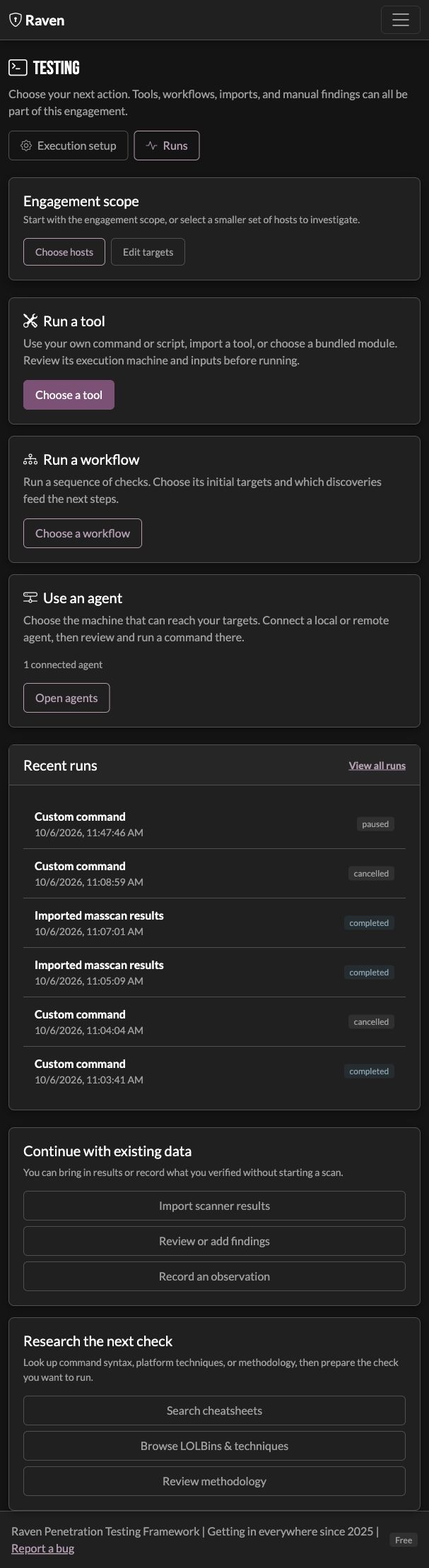
The individual workspace connects scope, discovered assets, execution, and evidence. It gives you choices for the next action; it does not require every engagement to follow the same checklist.
For a concrete example, see Internal Lab: From Scope to Evidence.
Start with the right targets
Create or select an engagement, then add authorized targets and exclusions in Scope & assets → Scope. A scope entry can cover a network, hostname, or URL; you do not need to enter every possible host as a separate row.
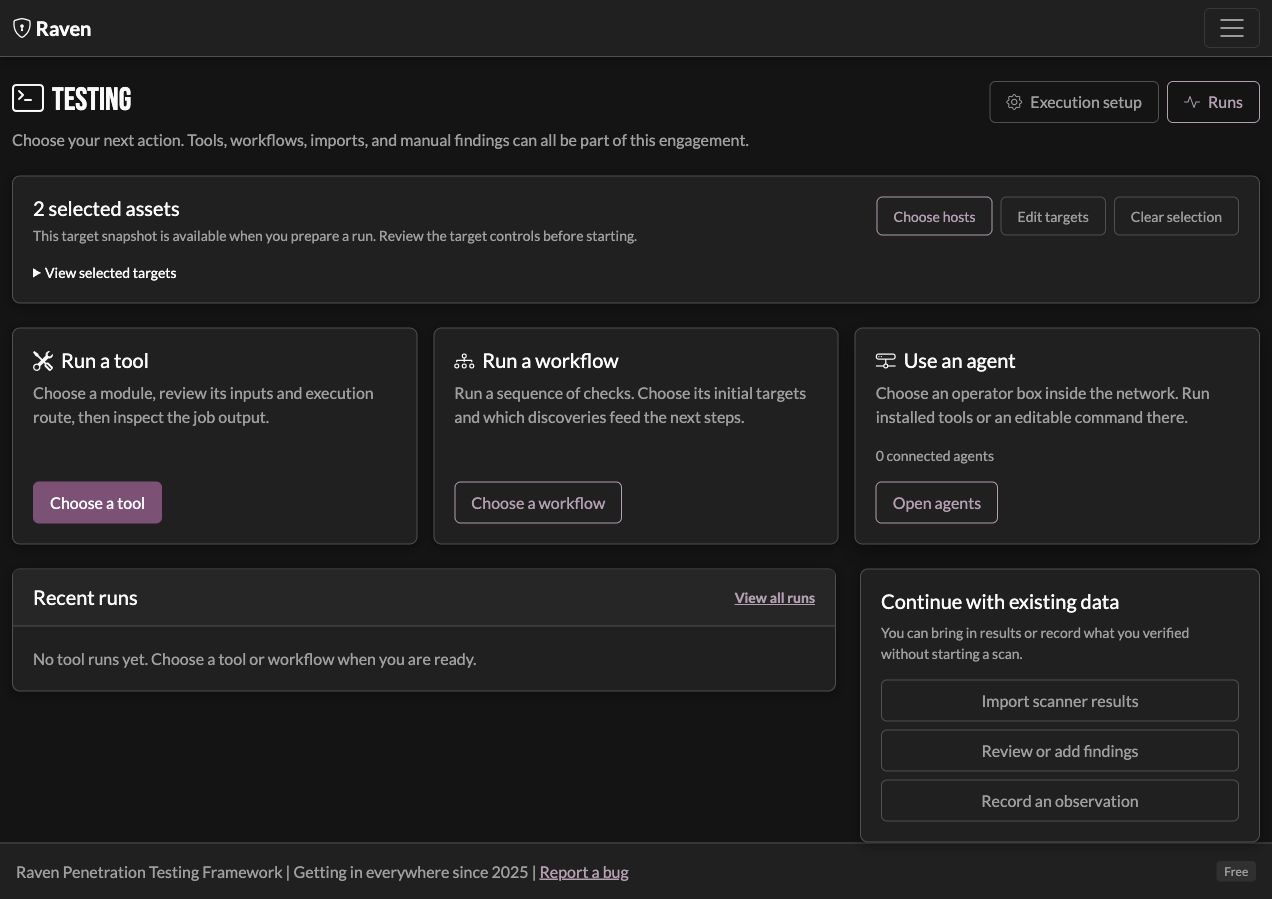
Use Hosts to inspect discovered ports and services, filter the inventory, and select the assets relevant to your next check. Open Testing → Testing workspace to carry that selection forward. Edit targets accepts one target per line; Clear selection returns the workspace to engagement scope.
Selections belong to the engagement and are a snapshot for preparing a run. Inspect the target controls in the tool or workflow before starting it. A saved selection is not a substitute for the agreed rules of engagement.
CIDR scope and exclusions
In Scope & assets → Scope, put allowed entries in Targets and entries to omit in Exclusions, one per line. Both fields accept IP addresses and CIDR networks, as well as supported hostname/URL entries. For a fictional lab:
| Field | Example entries |
|---|---|
| Targets | 10.77.0.0/24 |
| Exclusions | 10.77.0.2 and 10.77.0.128/28, on separate lines |
Save the scope before preparing a run. The exclusion narrows the allowed network; it does not create a second set of scan targets. Use the separate Exclusions field rather than adding an exclusion as another Targets entry. Inspect the prepared target list or target file to confirm excluded addresses were removed for the supported check you selected. A saved scope does not rewrite arbitrary shell commands: review their explicit targets yourself.
Choose an action
| Choice | Use it when |
|---|---|
| Run a tool | You want your own command, an imported tool, or a bundled module |
| Run a workflow | You want a sequence whose later steps use discoveries |
| Use an agent | The check needs execution on a connected operator box |
| Import scanner results | The scan already happened outside Raven |
| Review or add findings | You have an observation or evidence to record |
| Record an observation | You need notes without launching a test |
For a tool, review its inputs, prepared command, and execution location. Open Execution setup if the route needs changing. Connecting an agent does not automatically move every tool to it; tools can have their own execution route.
Where the tool actually runs
| Execution path | Tool process and network origin | What to prepare |
|---|---|---|
| Raven host | The machine running the server | Its tools and a route to the selected targets |
| Docker local execution | Inside Raven's container | The bundled toolchain is ready; confirm the container can reach the targets |
| Direct SSH jumpbox | The configured SSH host | Its SSH connection, tools, and target-network access |
| Connected Raven agent | The selected agent's host | Its callback connection, tool readiness, interface, and privileges |
| Local tool through SOCKS | The local process sends supported traffic through the configured proxy | Confirm the tool supports that proxy; it does not turn a local raw-network listener into a jumpbox process |
| Disconnected test box | A supported Raven installation on that box | Keep data there while testing, then use engagement transfer for reporting |
SSH can deploy a connected agent, or run a command directly; those are different execution paths. Strict testing windows allow supported local processes and connected agents, but refuse direct SSH commands whose remote child-process exit cannot be verified. A callback tunnel connects an agent to Raven; it does not move the agent's tools or traffic to the controller. See manual agent placement for a complete binary, callback, token, and engagement example.
Docker includes the tools, wordlists, templates, and local agent for the shipped catalog. Selecting an engagement starts the bundled agent; it does not start a scan. You still supply the targets, any required target credentials or service keys, and network access. A bare binary uses the tools installed on its host.
Bring your own tools
Open Testing → Tools to run a command, save it as an engagement tool, or import a Raven YAML definition wrapping a tool or script. The definition is a wrapper; its executable and dependencies must be present on the chosen machine. Importing a definition does not execute it.
Start with a minimal YAML wrapper and parser examples if this is your first definition. Give pasted definitions distinct filenames; an existing file is preserved until you explicitly update the saved tool.
Choose Run on explicitly: the Raven host or Docker container, a configured
jumpbox, or an available connected agent. Review Target input, the working
selection, and the shell command. {{targets_file}} generates a file containing
the selected hosts or complete web URLs, including their ports. This avoids
expanding a large scope into one shell argument. {{output_file}} points to a
unique output artifact for that run. Choose No network targets explicitly for
an offline helper.
Review run resolves the command and shows the execution machine, privilege, target count, generated input file, and output artifact. Starting the reviewed run rechecks scope and the testing window. A target snapshot records the declared inputs; inspect any explicit targets in an arbitrary shell command yourself.
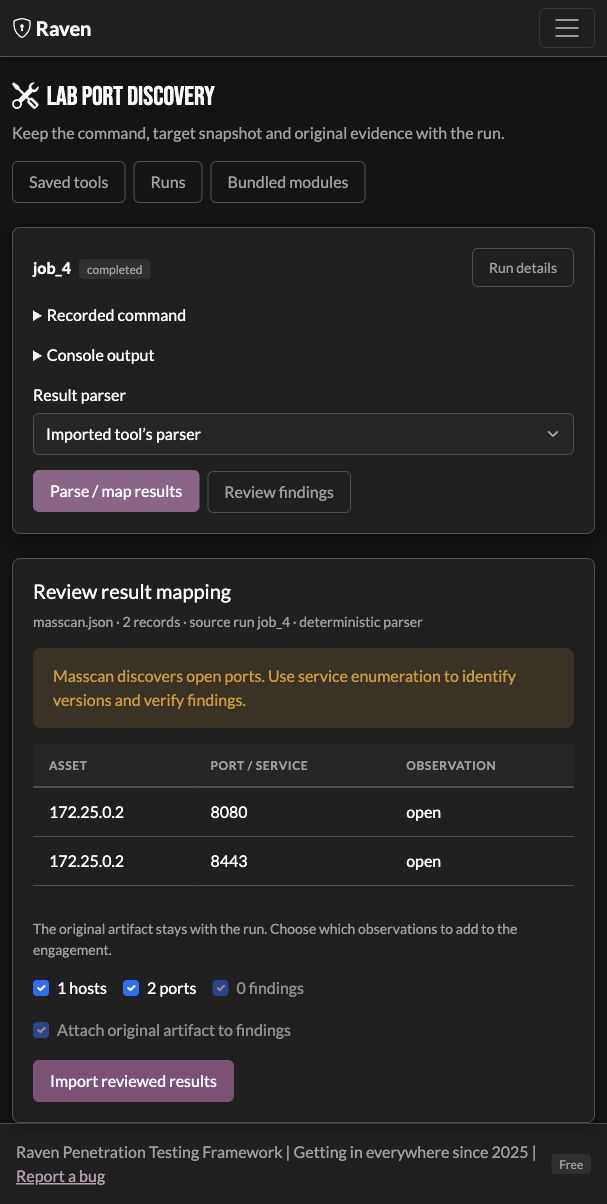
After completion, choose Parse / map results, review the discoveries and findings, then Import reviewed results. Parsing happens locally without AI. The original artifact and producing job remain available as evidence. Imported definitions can retain their deterministic parser and finding mappings; you can also select Nmap XML, Masscan, JSON lines, or raw evidence.
Prepare Masscan alternative is a starting command for port discovery. Edit its ports, rate and executable path, then save it as a personal tool. Select it for that run in place of a Nmap port-discovery check; Nmap remains available for service and version identification. Saving an alternative does not silently replace bundled modules or change existing workflows.
When editing an existing personal tool, Save as tool can create a copy or Update this saved tool instead of creating a copy. Earlier runs keep their original command, target snapshot, parser, and finding mapping.
Bring in results accepts independently collected output. Review its parser before importing. Raven records an import run with no invented command; link a real saved check when you need a reproducible retest.
The Tools page uses reviewed imports. Existing bundled scanners and the older
YAML module execution path keep their automatic import behavior. A YAML
findings_mapping can specify titles, severity, evidence, affected hosts and
ports, and filters; it does not require AI.
Smart scoping in workflows
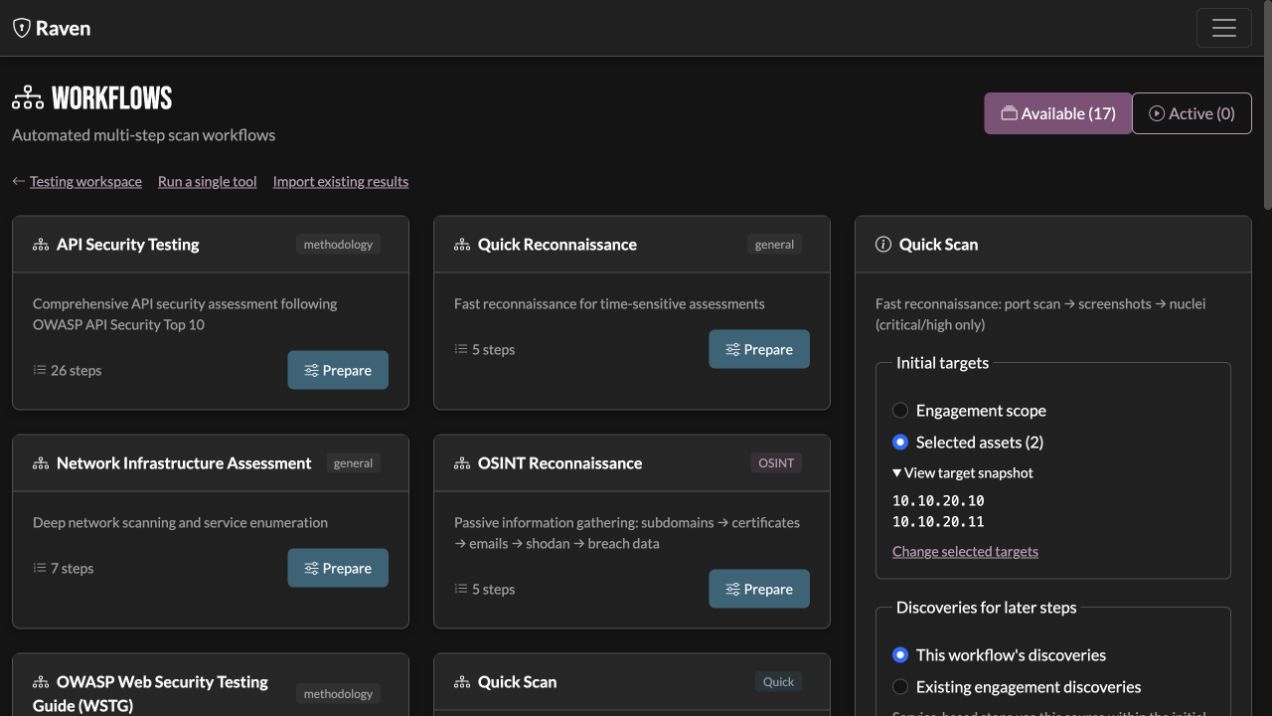
Before starting a workflow, inspect its steps and choose Initial targets: engagement scope or the assets selected in the workspace. Then choose whether service-based steps should use Existing engagement discoveries or This workflow's discoveries.
For example, a workflow can discover open ports and then send discovered web services to GoWitness. A service-based step with no matching service can be skipped. Supported built-in tool steps constrain their discovery source to the initial targets. URL selections contribute their hostname; subsequent scans and discoveries determine the ports and paths.
Existing discoveries are useful when you already know the environment. Using this workflow's discoveries keeps later steps tied to its own scans. Review the recorded target snapshot, input source, target count, and step output in the workflow run. Custom steps need their own review; the built-in targeting behavior does not turn arbitrary commands into scoped operations.
Choose workflows that fit the engagement. An optional check should run because it answers a useful question, not because it appears in a template.
Follow the run and its evidence
Open Runs to inspect progress, output, exit status, and saved jobs. Supported parsers bring results into hosts and findings. Inspect the output when a job fails or produces unexpected results; a completed process is not by itself proof that a target was tested successfully.
For timed engagements, choose Start when window opens during preparation. Queued runs wait for their opening. With Enforce window selected, managed commands stop at closing and retain partial output. The default reopening policy keeps interrupted runs for review; an explicit setting can restart eligible commands as fresh attempts. See Testing Windows for the executor requirements and the distinction between restart and checkpoint resume.
Imported results and manual findings can join the same engagement. Keep the affected assets, source, evidence, and notes together, then review the finding before including it in a report.
Retest a finding
Retest finding prepares a review. When Raven saved the producing run, the review can reuse that command, target, and execution location. Inspect them before choosing Run reviewed check.
For a manually entered finding, link a relevant saved background or agent run, or choose the appropriate check in Testing. Raven does not derive a command from descriptive prose. Examine the new evidence before changing the finding's status; running a retest does not automatically mark it remediated.
Settings without losing the testing context
Settings groups configuration by purpose:
| Area | What belongs there |
|---|---|
| Engagement | Client details, finding fields, and testing windows |
| Execution | Execution routes, jumpboxes, and proxies |
| Tools & services | Tool settings, third-party keys, and cracking services |
| AI & privacy | Optional provider setup and saved redaction rules |
| Data & recovery | Storage locations, credential encryption, and exports |
Where shown, This engagement and This installation distinguish the scope of a setting. In individual mode, an area's Save button saves that area's fields; save each changed area. BYO provider configuration has its own save control and applies across engagements. Save privacy rules before using the local preview or preparing an AI request. See AI Analysis and Credential Encryption for details.